

Annual wheels allow you to plan health and safety activities and distribute the tasks throughout a year. With the use of iterations, you can also set up activities that are repeated annually or at intervals of several years, so that the annual wheel extends over several years. This gives you a good tool for both short-term and long-term planning of the work of the HSE in the enterprise.

There are two ways you can create an annual wheel, either manually or based on examples inside Mentor HMS.
The first time you click on the “Annual Wheel” to, you'll want that you don't have one. You can create this by clicking on “Create new annual wheel” on the link or “New annual wheel” in the upper right corner.

See picture above.
Read more here: support.mentorpluss.no/en/help-hms/take-in-use-example
Yearly wheels are built by choosing one or more parent topics per month. This topic may be related to a specific HSE area, such as, Auditing, Fire protection, Working environment, Hygiene and infection protection.

To create a new theme for a month, click on the desired month and then select a “New Theme” in the top right corner or “Create New Theme” in the middle of the page if there is no theme for the month from before.

Under each monthly theme, you can add a series of tasks related to the selected theme. Choose from the following task types:
Now that the theme has been created, you can start by entering tasks. Tap on “Add Task”

Select the desired task type at the top. Based on the choice you make here, you will be given a list of routines, risk areas, emergency cards and checklists related to the health and safety area (s) associated with the topic.
Also enter whether the assignment should apply to the entire business or department. Selecting a department, a task will be assigned to each department for implementation. Also put the person in charge of the task
Save by pressing “Add”
When you add tasks under a theme, you can choose how often the task will be repeated. This helps you plan activities to be carried out regularly.
You can choose from the following repetition intervals:
If you select a repeat interval, the task will automatically appear in future year wheels. It means that a year wheel can span several years if it contains repetitive tasks. Therefore, keep in mind that you can plan long-term by using the recursion feature.
NB! One can scroll between the years/months by pressing the arrows at the top of the window.


To edit the name of the annual wheel or delete it, click on the gear icon in the top right corner to display the options.
To edit a topic, one click first on the desired month, then on “Edit” in the right-hand corner.
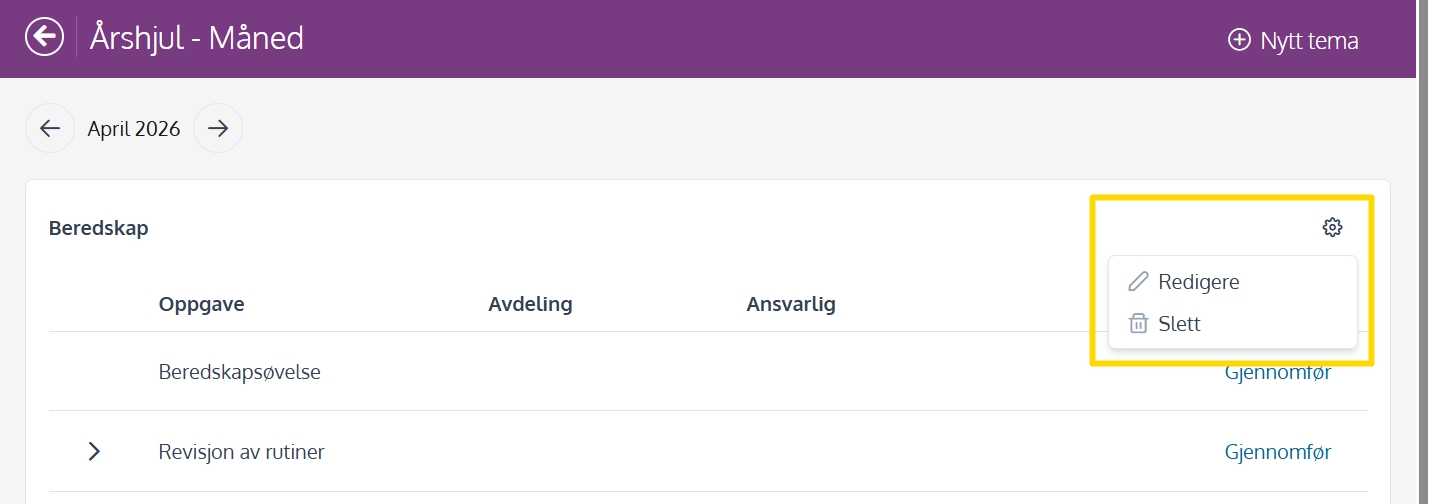
You choose from which month the change will apply.
Example:
If you change a theme and set “apply from” to April, the theme will appear from April onwards.
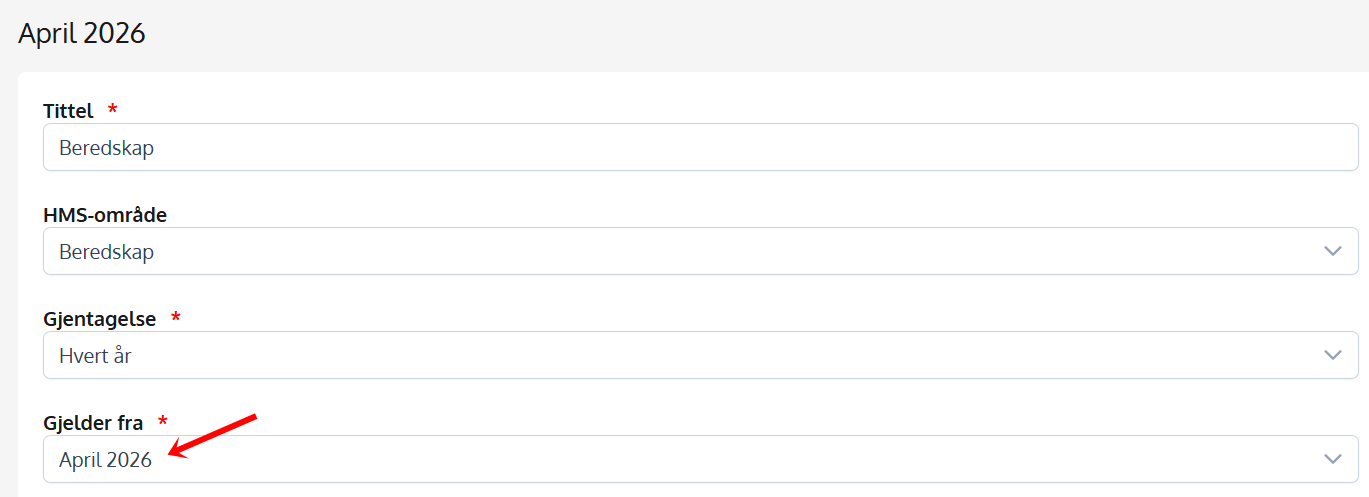
If you just change tasks:
Quando eliminar:

