With Competency Overview in Mentor HMS, you can keep track of employees' training, courses and certifications. You can record completed courses, monitor when competencies expire and export the overview to Excel.
You decide which course types your organization needs to track, such as first aid, fire safety or health and safety training.
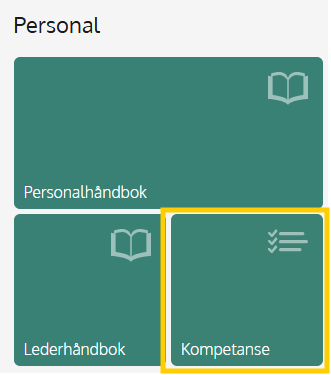
Competency Overview is available to administrators and editors. You can find it as a separate tile on the home page.
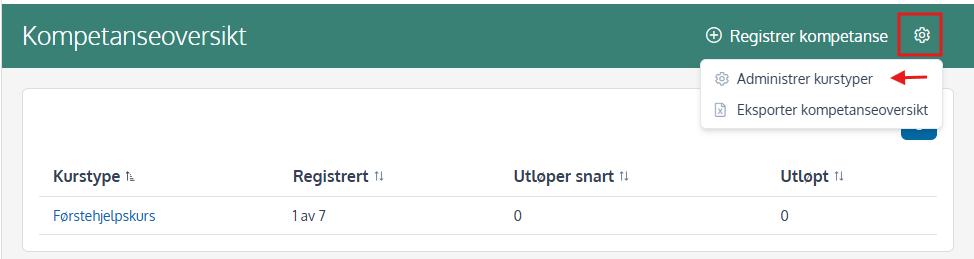
You can create your own course types for the training your organization needs to track.
Select the gear icon in the top-right corner, then select Manage course types.
You can register the same competence for one or more employees at the same time. This is useful when several employees have completed the same training.
In the final step, you will get a summary of the registration.
The qualification is now registered for the selected employees and is included in the competence overview.
If an employee already has the course registered, the new completion will become the current one. Previous completions are kept in the history and can be included in the Excel export.
In the competence overview, you can see how many employees have registered qualifications for each course type, and how many registrations are about to expire or have already expired.
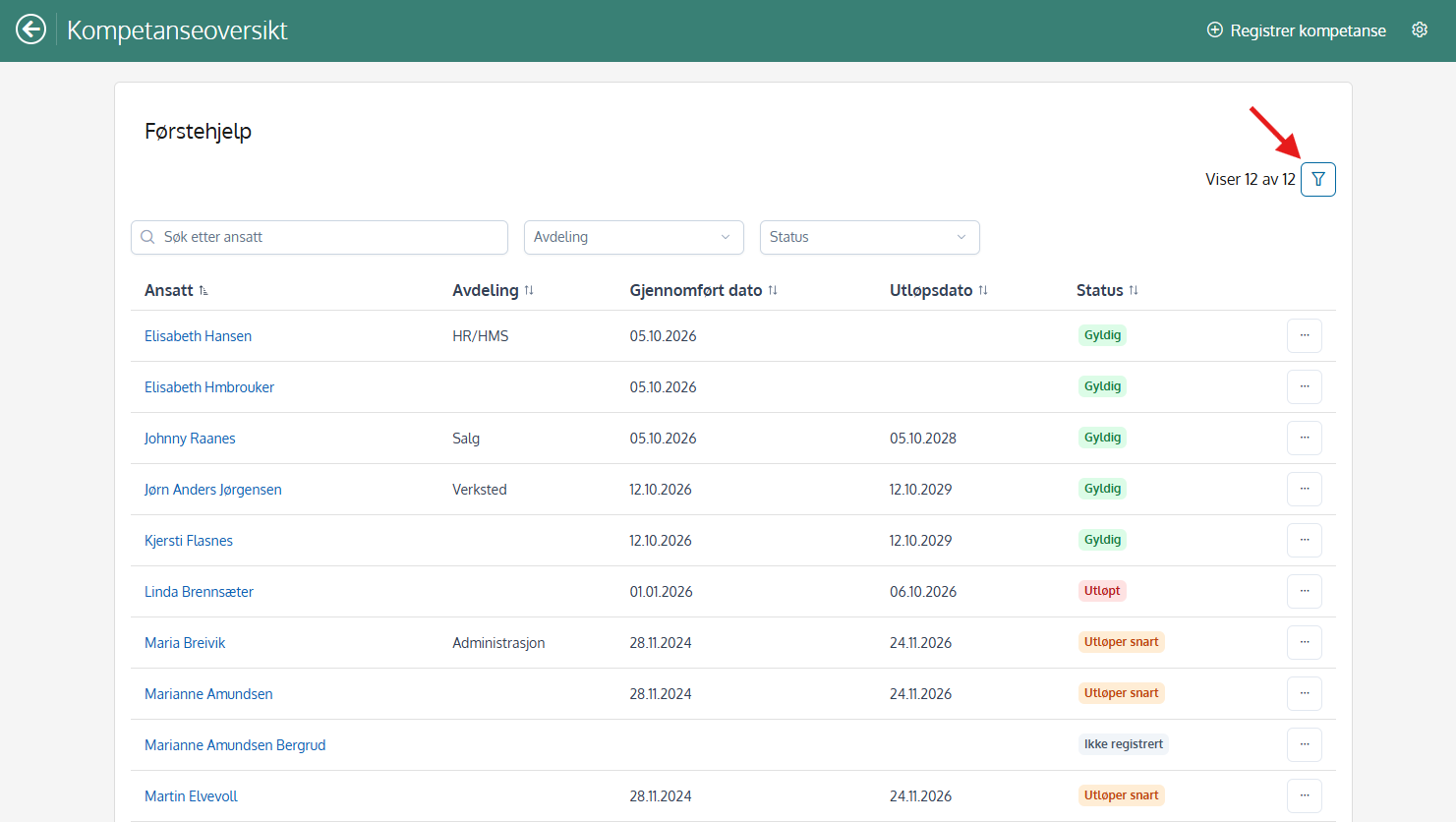
Select a course type to see which employees have completed the course. By clicking on a name in the list, you will get an overview of the qualifications registered for that person.
You can use the filter button to filter by employee, department, course type, or status. See illustration.
The qualification overview helps you follow up on courses and certificates that need to be renewed. When a registration has an expiration date, administrators and editors receive an automatic notification 60 days before the qualification expires.
Notifications are sent via both email and within Mentor HMS. If multiple registrations reach their notification deadline on the same day, they are combined into a single notification per recipient.
You can also check the Competence Overview to see how many registrations are about to expire or have already expired.
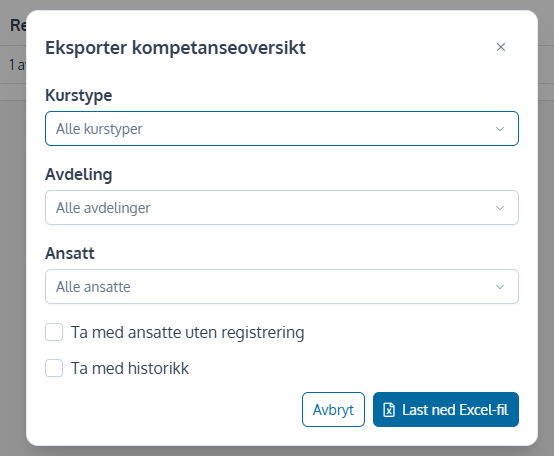
You can export the competence overview to Excel when you need documentation for internal follow-up or audits.
Select gear icon in the top right corner, and then Export competence overview.
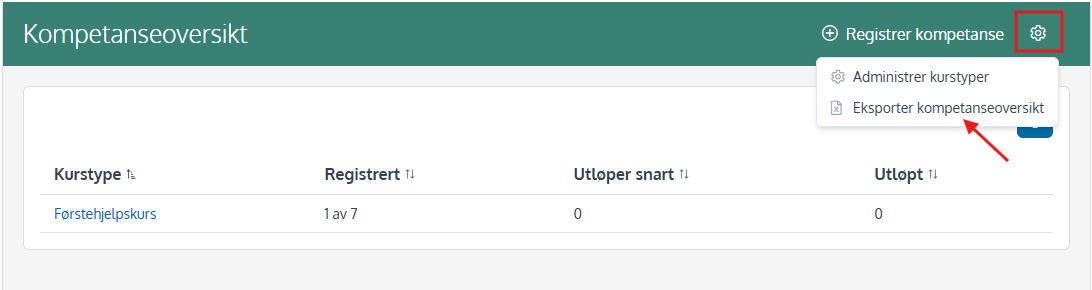
The Excel file contains information about the course type, employee, department, completion date, expiry date, and status. You can also choose to include employees without competence registrations and a history of previous completions.